Welcome in! Whether you are a Hurco user or just shopping around, you’ll find high-quality reading material right here.
Video

This training class covers conversational programming for 3 axis machines and basic operation of the control. Students are guided through a course of programming parts from basic to more complex.
Mill Intro Training Course Workbook
Video
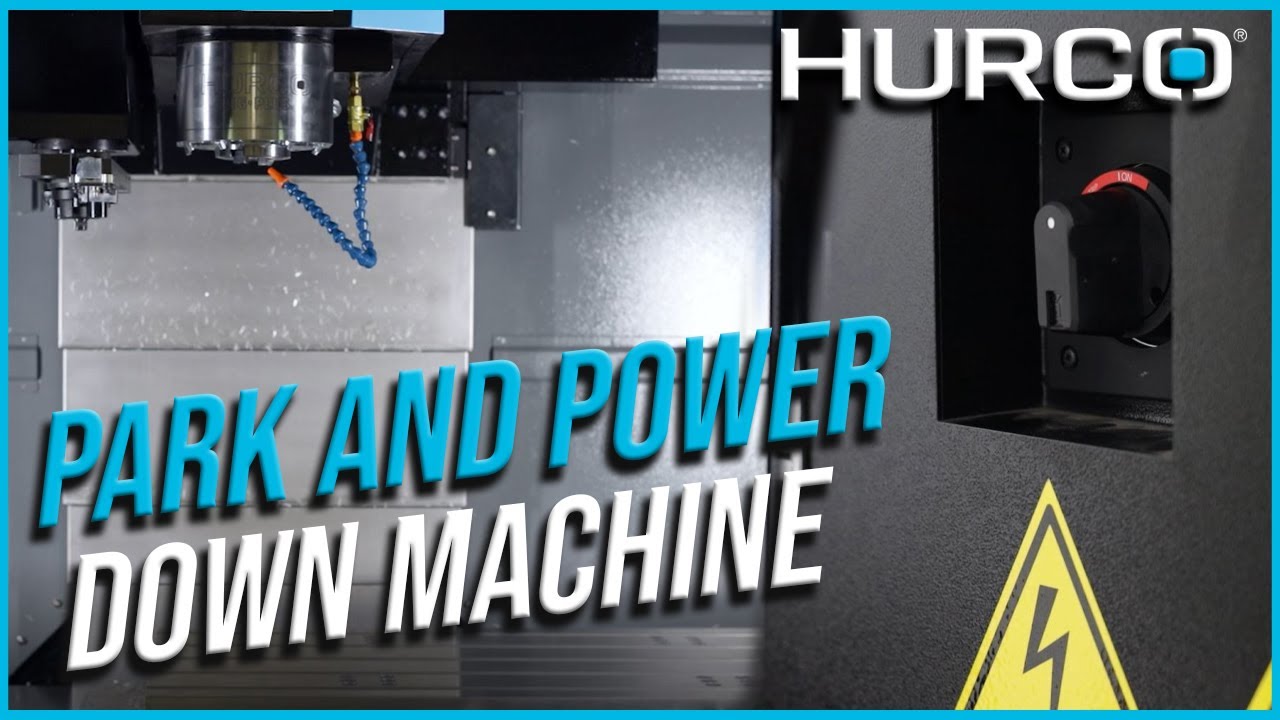
In this video you will learn how to park and power down your Hurco CNC Mill.
Park your machine
1. Press the Manual Button
2. Park Machine Softkey
3. Press the flashing Start Cycle button
4. Once the machine is positioned at the park location the control will enter an E-stop condition and the work light will turn off.
Power down your machine
1. Typically, you will park your machine first before you proceed to powering off the machine, but some machinists prefer to press the E-STOP button only.
2. Auxiliary
3. Utility
4. Shut Down Control
5. You will get a message that says, “do you really you want to shut down the control?”, select YES
6. Then you may see a message that says “you have work that has not been saved! Continue with exit?”, this is just prompting you to know that you may have programs that have not been saved yet. You may want to save those before proceeding, or simply select OK to continue.
7. After a few seconds your screen will transition to a black screen with a message letting you know that it is now safe to turn off the machine.
8. Go ahead and go to the back of the machine and turn the switch in the back
Video
Instructions for tool touch-off procedures without a probe.
Video
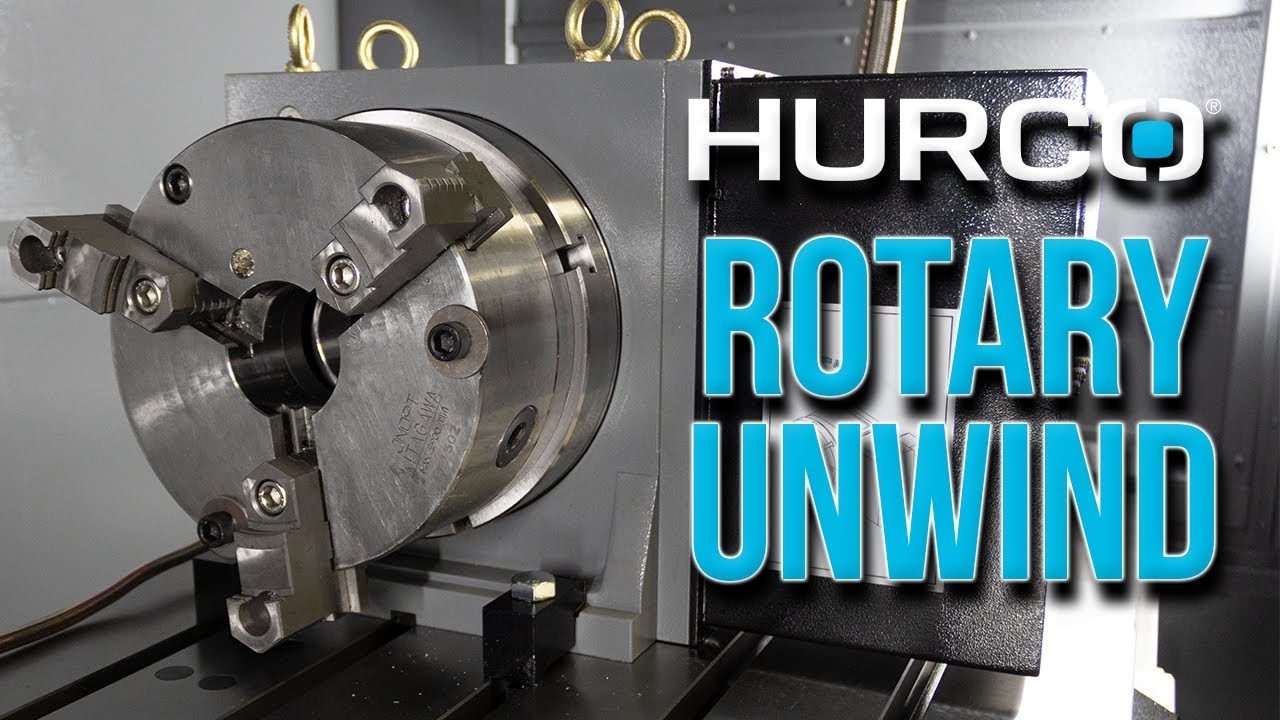
In this training video, we will show you three different ways to quickly unwind a rotary on your Hurco CNC mill.
Instructions:
Method #1 Quickest
1. If you have a conversational program already made in your control go to the REVIEW SCREEN by pressing the REVIEW key on your control panel.
2. Highlight the location of the program where you want the block inserted
3. Then select INSERT BLOCK BEFORE softkey
4. And click on the ROTARY AND TRANSFORM PLANES softkey
5. Select ROTARY POSITION
6. You will see at the top of the screen a field called RESET ROTARY ENCODERS, select YES.
Method #2 Conversational
1. Press the REVIEW key
2. Place the cursor in the location where you want the M31 inserted
3. Then select the INSERT BLOCK BEFORE softkey
4. Press the MISCELLANEOUS softkey
5. Press the MACHINE FUNCTION softkey
6. From there you will type “31” into your M-Code field and hit ENTER
7. Or scroll down and select M31 from the provided list and then press the select M-code softkey.
8. We now need to tell the control our rotary position, so you will need to go to the REVIEW SCREEN, highlight the location where you want to insert the rotary command, and select INSERT BLOCK BEFORE softkey
9. Press the ROTARY AND TRANSFORM PLANES softkey
10. Selection ROTARY POSITION BLOCK and make sure your 4th axis is turned on.
Method #3 NC
1. Press the INPUT key
2. Press the PART PROGRAMMING softkey
3. Type in “M31” wherever you need to reset the rotary
4. If you don’t have “G0, A0” already in your program, go ahead and type that in now.
Video
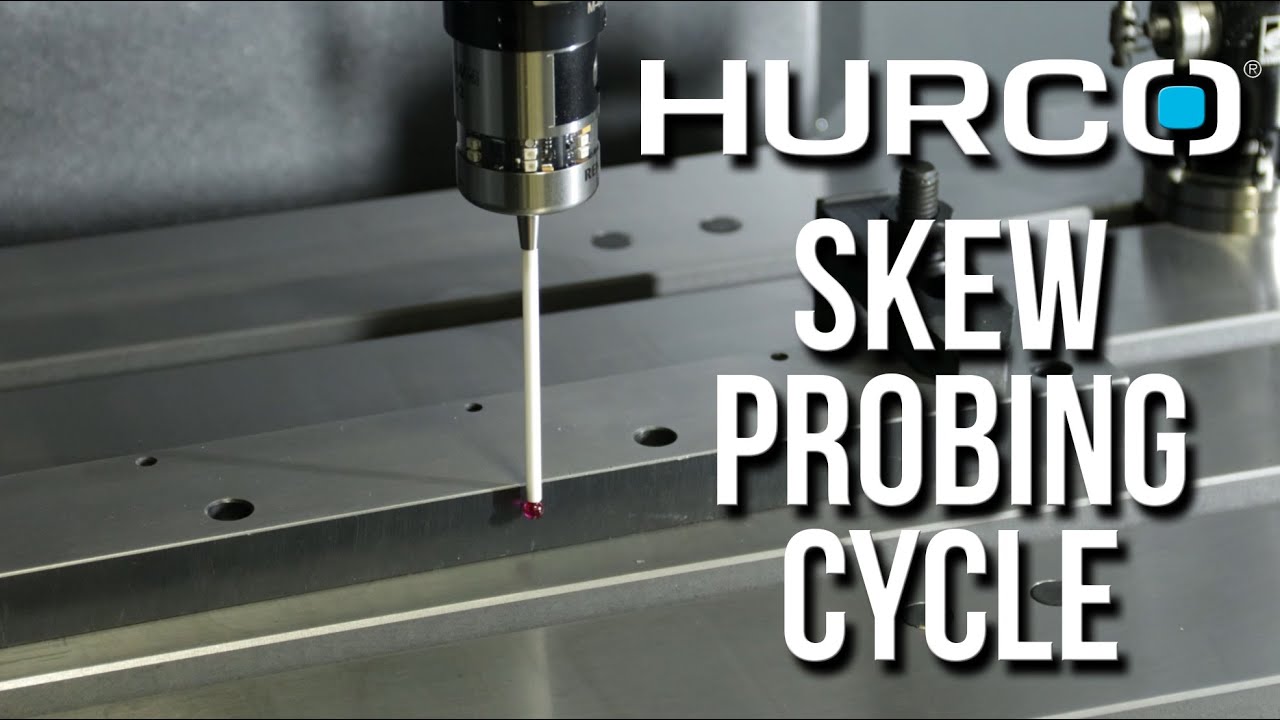
In this training video, we will show you how to use the Skew Probing Cycle on your Hurco CNC mill.
Instructions:
1. INPUT Key
2. PART SETUP Softkey
3. PART PROBING Softkey
4. You will need to find your part zero first, so you will want to select PART ZERO PROBE CYCLES Softkey
5. You can use any of these cycles listed on the screen, but for demonstration purposes we are going to select the PLANE INTERSECTION softkey
6. Once you are at this screen you will need to tell the control which direction in X and Y you want to move, as well as the distance between probe touches.
7. You will then select START PROBING CYCLE and press the CYCLE START button
8. Once you have your part zero set you will want to move onto your skew cycles. So you will need to EXIT the probing screen and select PROBE SKEW CYCLES Softkey
9. On this screen you will see that we have quite a few options for skew cycles. For demonstration purposes we are going to select TWO POINT EDGE
10. For this particular cycle you will have to move your probe into the starting position using the handwheel.
11. You will then tell the control which direction you would like the probe to move (+ or -) for the second touch to contact the part, then input the offset between the two probe touches.
12. Press the START PROBING CYCLE softkey and CYCLE START
13. In this example you can see that the probe will make its first bump, then it will move 8” which is the offset we set for our probe for its second touch.
14. Your skew angle results will appear in the results screen, press YES to accept them.
15. For future reference, you can also find view your current skew angle in the PART SETUP screen.
Video
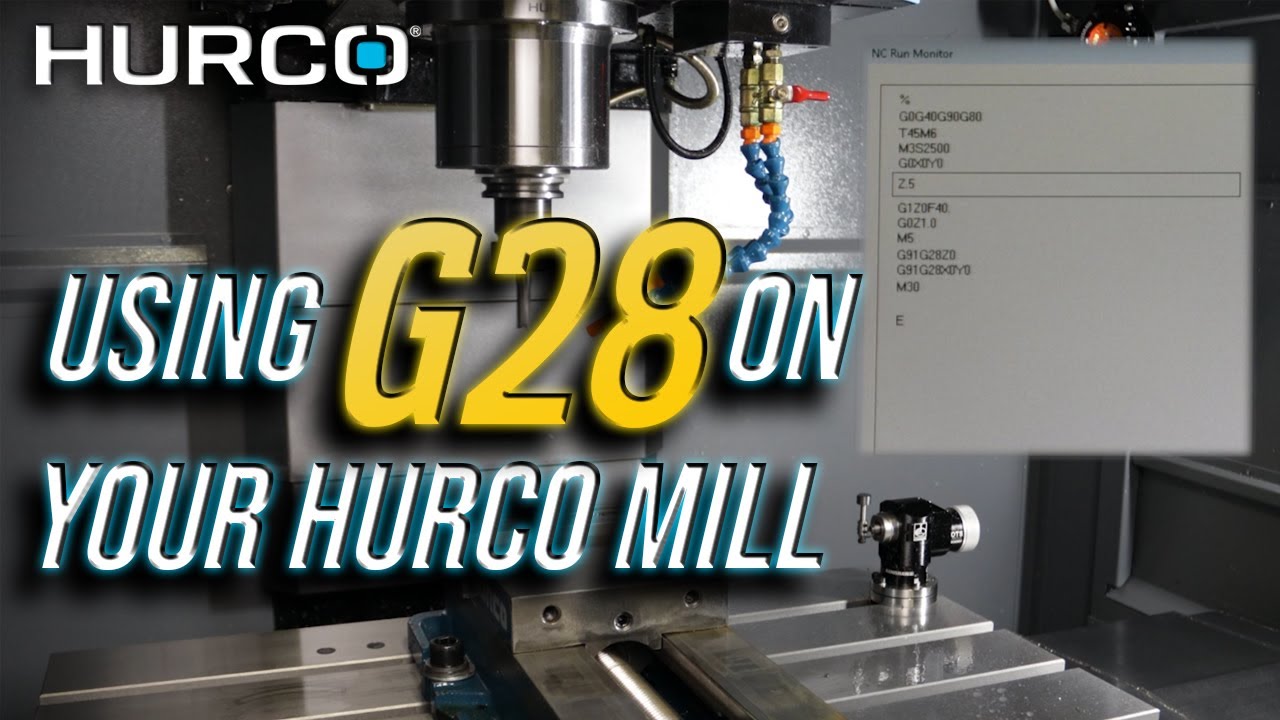
In this training video, Zach will show how to use G28 within an active G-Code program to position the table to a convenient unload/load position.
Instructions:
For this process to work you must have a G-Code program active
Step 1: Press the INPUT button
Step 2: Select PROGRAM PARAMETERS
Step 3: Select NC PARAMETERS
Step 4: Select NC CONFIGURATION PARAMETERS
Step 5: Set your X and Y REFERENCE POINTS to your desired values. (Example: If we wanted the table to come to the very front of the machine after the cycle is completed for loading and unloading parts, or automation purposes we would do the following steps. 1. For the X REFERENCE POINT, we would input a value that is equal to half of the machine's X-axis travel. 2. For the Y REFERENCE POINT, we would input a value equal to the machine's max Y-axis travel)
NOTE: The X and Y reference points automatically default to 0. NOTE: These values are always input as MACHINE RELATIVE values, and not part releative.
**We recommend you do not change the Z REFERENCE POINT, only change the Z-axis reference point if you are confident in what you are doing. We know there are times you will want to put your own value in the Z-axis field, but only do so for very specific reasons and do so with caution.
NOTE: The NC code G91 G28 X0 Y0 will always appear in the code as G91 G28 X0 Y0 or G91 G28 Z0 regardless of any custom values present in the NC CONFIGURATION PARAMETERS screen for XY REFERENCE POINT.
Video